%20(6).png?width=160&height=47&name=logo%20harness%20horizontal%20(blue)%20(6).png)
A client team is the specific group of firm users assigned to work on an individual client. It controls two things: access and accountability. Only users on a client's team can see that client's data. And each member is assigned a job role for that client, making it clear who handles what.
Client teams are set at the individual client level — each client has their own team, independent of other clients. This is intentional: it lets you give staff access to only the clients they actually support, rather than opening up an advisor's entire book of business.
How Access Works: Firm Teams vs. Client Teams
| Firm Team | Client Team | |
|---|---|---|
| What it is | The advisor's overarching team — exists at the firm level | A team specific to one client — set on each client record |
| Who it's for | Advisors, partners, and admins who need broad visibility | Individual contributors who support specific clients only |
| Access granted | All clients in that advisor's book of business | That one client's workflows, documents, notes, and data |
| Set up | Managed in firm/team settings | Managed on the client's profile page |
💡 Note: The advisor assigned to a client's firm team is always automatically added to that client's team. You never need to manually add the advisor — it happens by default.Step-by-Step
Step 1: Find the Client Team widget on an existing client
The client team is managed from the client's profile page, not from firm settings.
- Go to the client list and click into the client you want to set up.
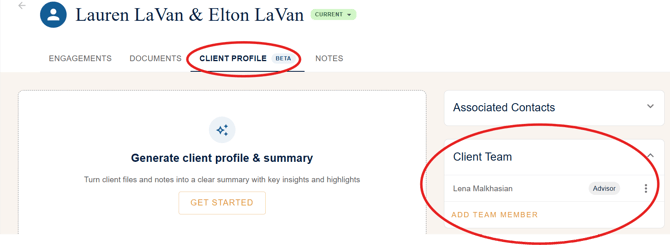
- Open the Client Profile tab.
- On the right-hand side, you'll see the Client Team widget.
- The assigned advisor will already be listed here — this is added automatically based on which firm team the client belongs to.
💡 Note: Every client will show their advisor here by default. This is the only team member who is added automatically — everyone else must be added manually.
Step 2: Add team members to an existing client
Once you've located the Client Team widget, adding team members takes just a few clicks.
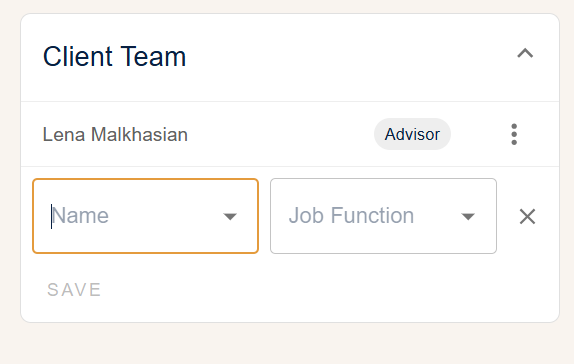
- Click Add Team Member in the Client Team widget.
- Search for the firm user you want to add.
- Select their job role for this client from the dropdown (e.g. Bookkeeper, Tax Manager, Accountant). This reflects the role they serve for this specific client — a user can hold different roles across different clients.
- Click Save. That user now has access to this client's data and is assigned their role.
- Repeat for each team member you want to add. There is no limit on team size.
💡 Note: Adding someone to a client team gives them access to that client only — not to any other clients in the advisor's book. This is the key difference from being on a firm-level team.
Step 3: Set up a client team during new client creation
When creating a new client, you have the option to set up the client team as part of the creation flow — but it's not required.
- In the Create Client flow, you'll see a Client Team section toward the end of the form.
- The advisor will be listed automatically once you select which firm team the client belongs to — no action needed for that.
- If you know who will be working on this client, add them now by selecting their name and assigning a role.
- If you're not sure yet — for example, if this is a prospective client who hasn't signed — skip this step. You can always come back and add the team later from the client's profile.
- Click Create. If team members were added, they'll have access to the client immediately.
💡 Note: For prospective clients, it's usually fine to leave the team as just the advisor until the client converts. Build out the full team once the engagement is confirmed.[IMAGE: step3-team-during-client-creation.png]
Step 4: Backfill client teams for existing clients
If you have existing clients who don't have a client team set up yet, the process is the same as adding members to any other client — just work through your client list.
- Go into each existing client's profile and open the Client Team widget.
- Add the relevant team members and assign their roles, as described in Step 2.
- Prioritize active clients where multiple staff members are already doing work — getting these set up first ensures the right people have access right away.
💡 Note: Until a staff member is added to a client's team, they won't be able to see that client's data — even if they're currently working on it. If you remove someone from a firm-level team before their individual client teams are set up, they'll lose access immediately. Backfill client teams first.
Step 5: Understand what's coming — group-level teams
Right now, client teams are set one client at a time. If a staff member works across a client group — for example, an individual and their business entity — you'll need to add them to each client's team separately.
- Client teams are currently one-to-one with each client record, not at the group level.
- A future update will allow you to assign a team at the client group level and have it apply to all members of that group automatically.
- For now, when setting up teams for grouped clients, work through each client in the group individually and assign the same team members to each.
💡 Note: This is a known limitation and is on the roadmap. For grouped clients, the extra few steps now will save time once group-level team assignment is available.
Quick Reference
| Scenario | What to do |
|---|---|
| Adding a team member to an existing client | Client Profile tab → Client Team widget → Add Team Member → select user → assign role → Save. |
| The advisor isn't showing on the client team | Check that the client is assigned to the correct firm team. The advisor of that team is added automatically. |
| A staff member can't see a client | Add them to that client's team via the Client Team widget. Being on the firm team is not enough if client teams are in use. |
| Setting up teams for a new client | Optional during creation — add members in the Client Team section of the Create Client flow, or do it later from the profile. |
| A prospective client — should I set up their team? | Advisor is added automatically. Hold off on adding other staff until the prospect converts and the engagement is confirmed. |
| Staff member needs access to a grouped client | Set the client team on each client in the group individually — group-level team assignment is coming in a future update. |
| Who should stay on the firm-level team? | Advisors (automatic), partners who need full book visibility, and admins who work across all clients. Individual contributors should use client teams instead. |
| Removing someone from a firm team | Set up their individual client teams first. Removing them from the firm team without client team assignments will cut off their access immediately. |
Video Walkthrough