%20(6).png?width=160&height=47&name=logo%20harness%20horizontal%20(blue)%20(6).png)
Overview
This feature works across three areas: firm settings (job roles), workflow templates (role-based task assignment), and client records (client teams). Set each up once and the system automatically assigns tasks to the right person whenever a workflow is started.
Step 1: Define job roles for your firm
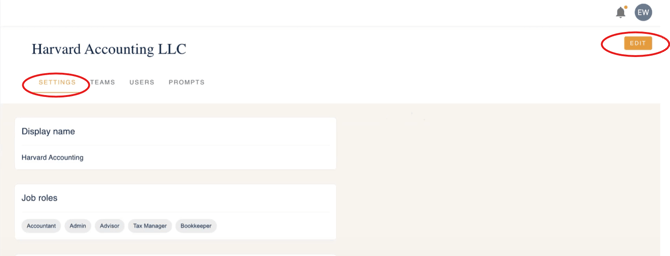
- Go to Firm Settings and locate the Job Roles widget.
- Click Edit to add, remove, or update roles (e.g. Accountant, Admin, Bookkeeper, Tax Manager).
- Type a role name and press Enter to add it, then click Save.
- Job roles should reflect the actual positions at your firm — set these once and only update if something changes.
💡 Note: Advisor is a default job role and behaves slightly differently — the advisor assigned to a client's team is always inherited automatically. You do not need to manually assign the Advisor role to each client.
Step 2: Assign job roles to users
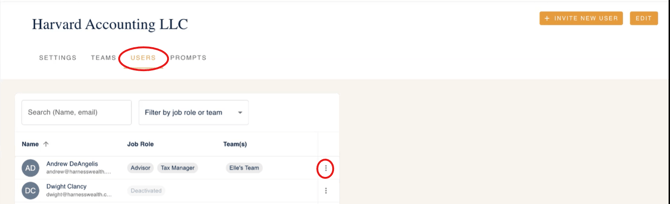
- In Firm Settings, navigate to your Users list.
- Click into a user and select Edit to assign or update their job role.
- The job role dropdown will match the roles you defined in Step 1.
- Click Save to confirm. You can also assign roles directly when adding someone to a client team, which is often more efficient.
💡 Note: You don't have to assign roles to all users upfront — assigning them as you build out client teams works just as well.Phase 2 — Update Workflow Templates
Step 3: Assign job roles to tasks in workflow templates
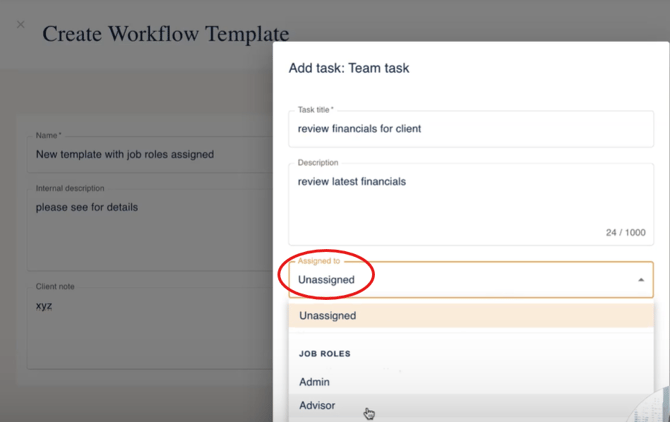
- Go to Manage Workflows and open an existing template, or create a new one.
- When adding a team task, you'll now see an Assigned To column.
- Select the job role responsible for that task (e.g. assign "Request docs from client" to Bookkeeper; assign "Review financials" to Advisor).
- Save the template. Role assignments can vary task-by-task within the same template.
- Repeat for each workflow template you want to use role-based assignment.
💡 Note: Each task within a template can be assigned to a different role. Think about who at the firm is responsible for each step, not just who's available.Phase 3 — Set Up Client Teams
Step 4: Add a client team when creating a new client
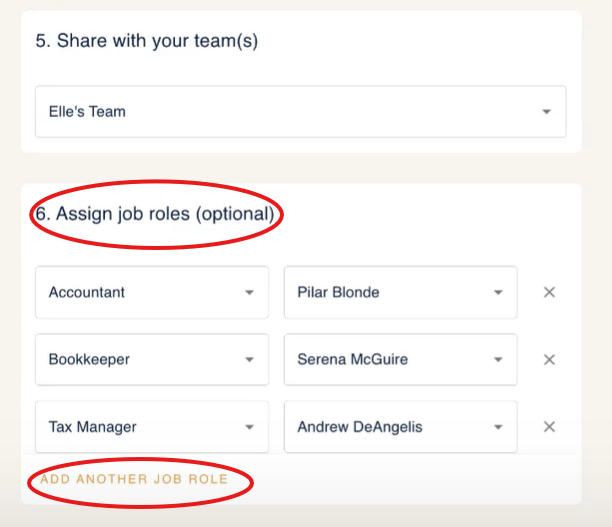
- In the Create Client flow, you'll see new fields including Client Status (Prospective or Current) and Client Team.
- Under Client Team, add each team member and assign their job role for this client.
- The advisor will be automatically inherited from the team assigned — you do not need to add them manually.
- Optionally, assign the client to an existing Client Group or create a new one.
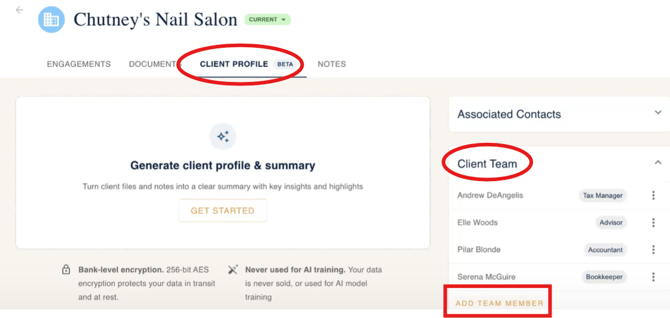
- Click Create to save. The client team is visible on the Client Profile tab.
💡 Note: Setting the client team at creation is optional, but recommended. You can always add or update team members later from the client's profile.
Step 5: Add a client team to an existing client
- Navigate to the client's record and open the Client Profile tab.
- Locate the Client Team widget and add team members, assigning each a job role.
- The advisor will always have access automatically — focus on adding other roles (bookkeeper, tax manager, etc.).
- Only users on the client team will have access to that client's information, workflows, documents, and notes.
💡 Note: Before removing staff from your firm-level team, make sure their client teams are set up first. Removing someone from the firm team without adding them to individual client teams will cut off their access immediately.Phase 4 — Start a Workflow and See Auto-Assignment in Action
Step 6: Start a workflow — tasks auto-assign by role
- Go to the client's Engagements and start a workflow using a template that has job roles assigned.
- When you select the template, the system looks up who holds each role on that client's team.
- Tasks are automatically assigned to the right person — no manual selection needed.
- This works for both single-client and bulk workflow creation.
- Assigned tasks will appear in each team member's Task view under the Engagements page.
💡 Note: If a client doesn't have someone assigned to a role that a task requires, the task will show the role name rather than a person until the client team is updated.Quick Reference
| Concept | What to know |
|---|---|
| Job Roles | Defined at the firm level in Settings. Set once, used across all clients and templates. Advisor is a special default role — always inherited automatically. |
| Workflow Template Assignment | Assign a job role (not a person) to each task in a template. When the workflow runs, the system matches the role to whoever holds it on that client's team. |
| Client Team | The specific people assigned to work on an individual client. Drives both task assignment and data access. Set up during client creation or from the Client Profile tab. |
| Firm Team vs. Client Team | Firm team = an advisor's full book of business (broad access). Client team = specific staff for one client (scoped access). Use client teams for individual contributors; firm teams for advisors and firm-wide roles like Admin. |
| Bulk Workflows | Auto-assignment works for bulk workflow creation too. Tasks will display the role name initially, then resolve to the assigned person behind the scenes. |
| Access Control | Only client team members can see that client's data. Remove staff from firm teams carefully — set up client teams first to avoid loss of access. |
Video Walkthrough